
You've subscribed to a creator, the billing date is approaching, and you want to stop the charge. Here's what to do: find the subscription in your account or app settings, turn off auto-renew or select cancel, and confirm the action before your next billing date. Your access usually continues until the current paid period ends. Refund policies vary by platform.
That single step trips people up more than it should. Search creator forums and you'll find unanswered posts like "does anyone know how to cancel subscriptions?" or complaints that a subscription still shows active even after someone thought they cancelled it on the App Store. This guide covers both: how to actually cancel and how to confirm it worked.
A note before we start: ModelFinds is an independent creator directory, not affiliated with OnlyFans, Google, Apple, or Meta. The Apple and Google steps below link to those companies' own help pages.
What Cancelling Actually Does
Cancelling a creator subscription stops the next automatic charge. It does not instantly cut off your access, and it does not automatically trigger a refund for the period you've already paid.
Think of it as two separate actions:
- Stop the renewal. The platform stops charging your payment method at the next billing cycle.
- Keep current access. Most platforms let you keep access to the creator's content until the end of the period you already paid for, then it lapses.
Google Play Help confirms this for Google Play subscriptions: when you cancel, you can still use your subscription for the time you've already paid. Apple has its own help page for App Store subscriptions. Individual platforms set their own refund and access rules in their terms of service, so check the specific platform's current policy rather than assuming it matches another.
Refunds are never guaranteed. Some platforms offer them in limited circumstances (accidental purchase, billing error); many don't offer them at all for periods already paid. Treat any refund as the platform's choice, not a guarantee.
What to Check Before You Cancel
A few seconds now saves confusion later. Before you cancel, confirm:
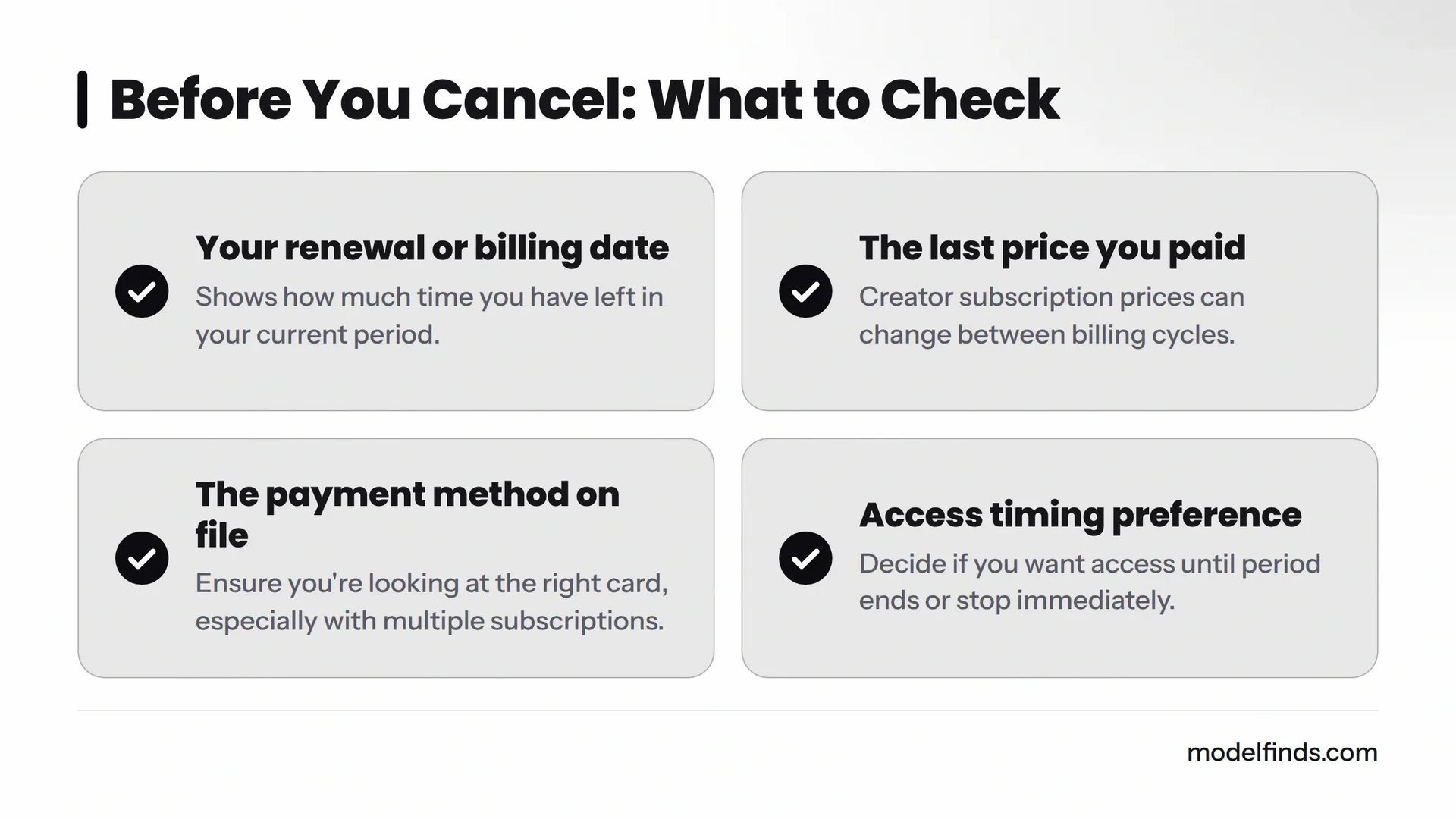
- Your renewal or billing date. This shows how much time you have left and whether cancelling now still lets you use the current period.
- The last price you saw when you subscribed. Creator subscription prices can change between billing cycles. Knowing your original price helps you spot increases if you resubscribe later.
- The payment method on file. Make sure you're looking at the right card or account, especially if you have multiple creator subscriptions.
- Whether you want to keep access until the period ends or stop access immediately. Cancelling almost never stops access right away on its own.
Cancelling a subscription is not the same as deleting your account. Cancelling stops one recurring charge and leaves your profile, messages, and account intact. Deleting your account is a separate, usually irreversible action that removes your entire presence on the platform. If that's what you're trying to do, that's a different process with different consequences.
Step 1: Open Your Active Subscriptions List
Every platform organizes this differently, but the pattern is consistent: subscriptions live in your account settings, not on the creator's profile page alone.
Common locations:
- In-app billing menu: Usually under "Account," "Settings," or a profile icon, then a section labeled "Subscriptions" or "Billing."
- App Store subscriptions (iPhone): Settings app - your Apple ID name - Subscriptions, per Apple Support.
- Google Play subscriptions (Android): Google Play app - profile icon - Payments & subscriptions - Subscriptions, per Google Play Help.
- Desktop browser: Account settings on the platform's website rather than through an app store.
If you subscribed directly through a creator platform's website rather than through an app store, your subscription almost always has to be managed on that same website, not through your phone's app store settings. This is why someone might cancel "on the App Store" while the subscription still shows active elsewhere: the two systems don't always sync instantly, and a subscription purchased on the platform's own site has to be cancelled there, not through Apple or Google.
Step 2: Select the Subscription You Want to Cancel
Once you're in your active subscriptions list, you'll see each subscription identified by the creator's name or username, the price, and the next billing date. If you follow multiple creators, this is where you confirm you're cancelling the right one.
Look for a status label near each entry, typically reading "active," "renews on [date]," or already "cancelled." Tap or click into the specific subscription matching the creator and billing date you want to stop.
Step 3: Confirm the Cancellation
Most platforms require a confirmation screen before a subscription cancels. You may see a short survey asking why you're leaving; optional feedback can usually be skipped, but you do need to tap through the final "confirm cancellation" or "turn off auto-renew" button.
After confirming, look for:
- A status change from "active" to "cancelled" or "will not renew"
- An on-screen message stating your access end date
- A confirmation email or in-app notice
If none appear, the cancellation likely didn't go through. Repeat the process or check the platform's help center for that error.
Verify Your Cancellation Worked
This step is where most guides fall short, and it's exactly where the "I cancelled it but it still shows active" confusion comes from. Don't assume. Verify.
- Check the subscription status label again. It should now read "cancelled," "will not renew," or show an access end date instead of a renewal date.
- Save your confirmation. Screenshot the confirmation screen or keep the confirmation email. If a billing dispute comes up, this is your proof you cancelled on a specific date.
- Re-check in 24 to 48 hours if the status hasn't updated. Some platforms process cancellations in batches or sync between app stores and their own servers with a short delay. This is the most common reason a subscription briefly still shows active right after you cancel.
- Check your bank or payment app statement near the old billing date. If no new charge appears, the cancellation held.
If you're still being charged after following all these steps and waiting through one full billing cycle, this points to either an incomplete cancellation (perhaps you cancelled through the wrong channel) or a billing error worth raising directly with the platform's support team.
Set a Reminder for Your Next Renewal Check
Cancelling once solves today's problem. A renewal-check habit solves the next.
Set a calendar reminder a few days before any subscription you're still considering would renew. Use that reminder to do two things: confirm whether you actually want another billing cycle, and compare the current price against what you originally paid. Creator subscription prices aren't fixed forever. A creator can raise or lower their rate between cycles, so the price you paid three months ago isn't a reliable guide to what you'll pay if you resubscribe.
If you're comparing multiple creators before deciding who's worth a subscription, check the creators' platforms directly for their current offers. Prices change regularly, and the public platform listing is always more current than any guide or directory.
What Happens to Your Access After You Cancel
In most cases, access continues through the end of the period you already paid for, then lapses automatically once the next billing date would have arrived. You generally won't get access cut off mid-cycle just because you cancelled early. This matches what Google Play Help says for Google Play subscriptions, though the exact terms always sit in the specific platform's own policies, including Apple's.
A few related situations fall outside this guide's scope:
- Free trial. Trial terms govern what happens when you cancel during the trial window, not the paid cancellation process.
- Price changes. A price change is separate from a cancellation decision.
- Payment failures. If a payment failed and you're locked out, that's a billing-error situation, not a cancellation choice.
Know Which Topic You Actually Need
Cancelling a subscription is one of several related tasks people search for together. Here's how to tell them apart:
| Situation | What it means |
|---|---|
| Cancel a subscription | Stop future renewal; keep access until period ends |
| Delete your account | Permanently remove your profile and entire account |
| Billing or payment error | A charge failed or was declined; no cancellation action taken |
| Free trial | Trial-specific terms apply, not standard paid cancellation |
| Price change | The subscription cost changed, unrelated to cancelling |
If you're looking for one of the other four, search for that specific topic rather than trying to force this guide's steps to fit. Each has its own confirmation pattern and its own risks.
Common Questions
Does cancelling end my access immediately?
Usually not. Access continues until the end of the period you already paid for. The exact end date appears on the subscription's status screen once you cancel.
Will I get a refund if I cancel?
Not guaranteed. Refund eligibility is set entirely by the platform's policy. Many subscription services don't refund the current paid period just because you cancelled early. Check the specific platform's refund policy first.
How do I know if my cancellation actually worked?
Check that the subscription's status changed from "active" to "cancelled" or "will not renew." Save your confirmation email or screenshot. Re-check 24 to 48 hours later if the status hasn't updated yet. No new charge on your statement near the old billing date is your final confirmation.
What's the difference between cancelling a subscription and deleting my account?
Cancelling stops one recurring charge and leaves your account, profile, and messages intact. Deleting your account removes your entire presence on the platform and is usually irreversible. They are completely separate actions.
Can I cancel and still finish the period I already paid for?
Yes, in most standard subscription models. Cancelling stops the next charge; it doesn't usually revoke access you already paid for in the current cycle.
What if I'm still being charged after I cancel?
Wait through one full billing cycle first; some cancellations take a day or two to sync across systems. If a new charge still appears, check whether you cancelled through the correct channel (the platform's website versus an app store). If the charge persists, contact the platform's support team directly with your confirmation screenshot or email as proof.
Next Steps
Cancelling a creator subscription isn't complicated once you know where auto-renew actually lives and how to prove it's really off. Check your billing date, follow the three steps, save your confirmation, and set a reminder before you ever resubscribe. When you're deciding which creators are worth following in the first place, check their public profiles directly for accurate, current information about offers and pricing.